Add Subtitles to Video
How Does it Work?
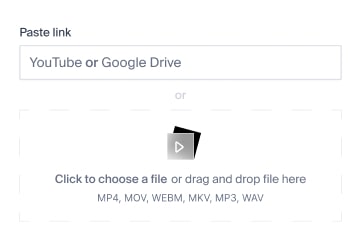
Drag a video file into the box, paste a YouTube link, or pull it from Google Drive. MP4, MOV, WEBM, MKV, MP3 and WAV are supported, so the video upload takes seconds and covers all major video formats. Upload video from a laptop or a phone - the flow is the same, and the common video formats are all there.
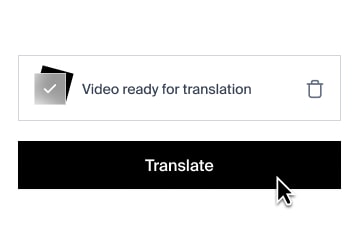
Pick the language and press translate. Rask AI transcribes the audio, separates each voice from the background mix, breaks the speech into readable lines, and will generate subtitles that match the spoken dialogue segment by segment. The auto subtitles arrive with the timings already set, so there is nothing to line up by hand before you look at them, and you can generate subtitles for another language from the same project later. Select the desired language and press translate
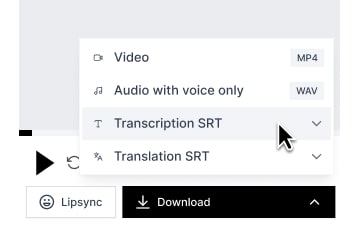
Once you have finished editing, apply the changes and export. Download subtitles as an SRT file, or take the video with subtitles burned into the picture - whichever the platform you publish on expects. You can download subtitle files as often as you like: the project stays in your account, so you can edit subtitles again next week and export a new version of the video.
Why Do You Need This AI Subtitle Generator?
Adaptability
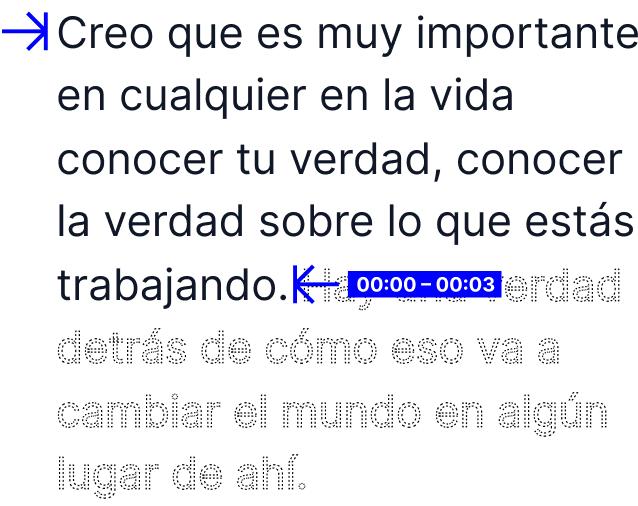
A translation is almost never the same length as the original sentence, and that is where most auto subtitles fall apart. In the subtitle editor the original and the translation sit side by side, so you can rewrite a phrase, pick one of the AI's translation alternatives, split a subtitle line, and manually adjust the timestamps over the waveform until the text lines up with the speech. Reading speed stays comfortable and the subtitles appear when the speaker actually starts talking. The online subtitle editor keeps the video, the subtitles, and the timeline on one screen, so you never lose your place in a long clip.
Enhance User Engagement with Professional Editing
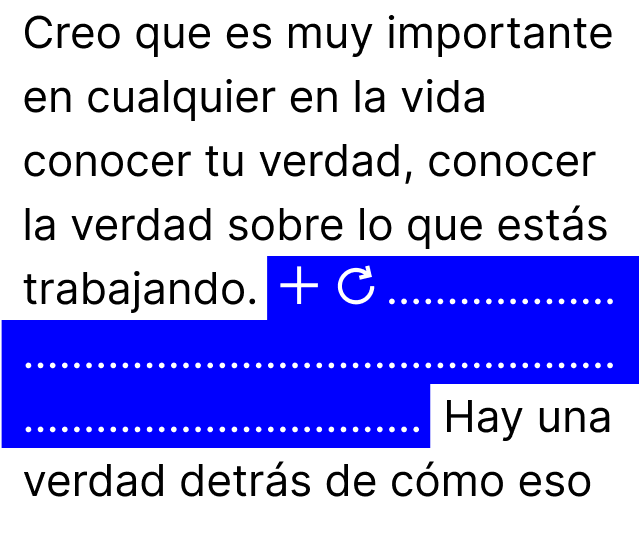
Subtitles are what keeps a muted viewer watching, but only when they read well. Add or change a phrase to match your content, fix a name the AI misheard, and correct speaker names so a two-person interview reads like a script. Everything is fully editable: you edit subtitles the way you would edit a document, and the preview player updates with the CC track switched on so you can watch the result before you export. Video captions built this way carry your names, your product terms, and your punctuation instead of the generic guesswork of auto generated captions.
Simplify Workflow and Maintain Quality
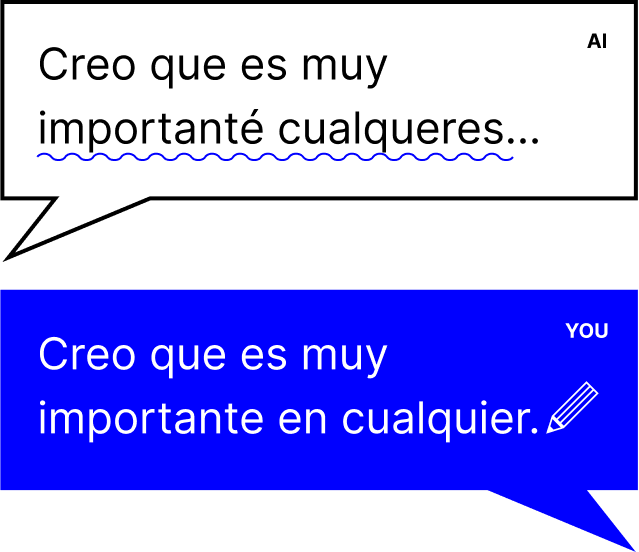
Even the best AI misreads a technical term now and then. Rask AI lets you fix it in seconds instead of rebuilding the whole subtitle file: correct a word, adjust timing, fine tune the split, and re-export. One workflow covers transcription, translation, corrections, subtitles, and even a dubbed voice track - no jumping between three apps to add subtitles to video, and no video editor to learn. Add subtitles to video once and the same project gives you the subtitles for every platform you publish on, free to re-export as many times as you need. For a channel publishing weekly, that is the difference between captions on one video and captions on all of them.
Options for Using Our Adding Subtitles to video Service

Content Creators
Our tool offers flexibility in adding subtitles to video content for different platforms. Whether you are a content creator who wants to add subtitles to a video on Facebook, or a corporation that needs to add captions to a promotional clip, it takes just a few clicks: upload your video, press translate, download subtitles. Export the subtitled video with the captions burned in for social media videos, or keep an SRT file for the platforms that let viewers switch captions off. Video subtitles in a second language cost you one more click, not a second edit. Most people scroll with the sound off, so video subtitles are what keeps them watching to the end - and subtitles in a second language open the same clip to a global audience without a reshoot.
Businesses
The versatility of our tool lets you work with various video files and subtitle files, including srt files. You can upload the video file directly or paste a link, depending on your needs. Whether you want to add subtitles manually, edit what the AI wrote, or take the automatic subtitles as they come, it is all doable from a browser on any device, and the closed captions travel with the video wherever your viewers watch it. Product demos, webinars, onboarding decks, and sales calls all become searchable once the subtitles are attached, and search engines index that text along with the page. Share the project with a colleague for review instead of mailing files back and forth. The subtitles play on all the major video platforms - YouTube, Vimeo, Wistia, and every social network that accepts a subtitle file.

Educational Institutions
Incorporating subtitles into your video not only aids understanding, it adds a layer of professionalism. For educators and training teams, our tool can create subtitles, burn subtitles into the frame, and refine the captions to match the spoken dialogue. It is more than just text on the screen: subtitles make videos accessible to hard of hearing viewers, help international students follow a lecture in a second language, and let everyone read at their own pace. Closed captions make the content accessible to anyone who cannot use the audio at all. Add subtitles to video lessons once and the captions stay with the course: a whole module can go through the same flow so the wording stays consistent from lesson to lesson, and when you need to edit the video manually - a definition, a formula, a term nobody outside the field would know - the editor gives you the room.
User feedback

THE BEST AI video translation tool
The user interface is exceptionally intuitive, making the entire process ultra-easy for me. I've particularly appreciated Rask's proficiency in handling technical and specialized language commonly found in online courses. The translations consistently maintain accuracy and a natural tone.

Probably the best AI dubbing software on the market right now
It has an easy to use interface where both the original language and the translation can be edited. And the clone voices are quite good. In totality a top tool right now in the market. I'm the host of a local podcast that we would like to internationalize - translating it to several languages and sending it out again using the original voices, now cloned and speaking English.

Great AI software for delivering content worldwide
The most helpful feature is to edit the translated transcript and being able to redub the video. The voice cloning feature is very accurate - that is great for delivering the content of a known guest, that people know how their voice sounds. Now they recognize the voice and understand the message.

A great discovery that saved a lot of work!
The easy straightforward way to use it, the fact to be able to edit the translated text before rendering the final versions - we work with videos that need compliance approval for the text, so for us this is an important feature, together with the fact that the voice cloning is very well achieved. It makes it easier for us to respond quickly to client changes.
.png)
Not perfect, but almost...
You don't need any previous knowledge, you just sign up and start translating and dubbing your videos. The possibility to correct the translations helps to get exceptional results. I have done a project of about 30 videos of about 25 minutes each in 2 languages and the results were excellent.

Amazing
I used Rask to translate 18 episodes of a podcast from the original Italian. I cloned my own voice and used library voices for all the other people involved. The result is amazing. My cloned voice sounds like my own voice (with a better accent). Rask allowed me to translate an Italian podcast into English in just 3 days.

AI-based video translation service that breaks down language barriers
The most impressive feature is the AI's ability to maintain the speaker's original voice while translating the content. This is a game-changer for online educators like myself looking to reach a global audience. French being my first language, it was difficult for me to reach students from UK, US, etc. But with this tool, I have access to a bigger market.
Fantastic translation tool with some room for improvement
I'm a Canadian YouTuber who's always wanted to translate my content to the french language. I've used it on a couple of my videos to date, and have to say I'm quite impressed with the cloned voice feature. Planning on using it for 3-4 videos per month to bring my french channel back to life without a huge time commitment.